Staff portal guide · Chapter 2
Signing in
The dashboard has no password. You sign in with a link that VillageFor emails you, then a 6-digit code from your authenticator app. The first time, you also set up the app and save your recovery codes. The login page's How sign-in works link opens this chapter.
The invitation email
Your admin adds you to the dashboard, and VillageFor sends you an email with the subject "You have been added to the VillageFor staff dashboard". It says:
- you now have access;
- "Before you sign in, install an authenticator app on your phone, for example Google Authenticator, Microsoft Authenticator or 1Password. Your first sign-in asks you to set up two-step sign-in with it.";
- the login address to open, and that you sign in with this email address and no password.
The invitation does not contain a sign-in link, so it never expires. Keep it, because it holds your login address. If it never arrives, check your spam or junk folder, then ask your admin to send it again.
Before you sign in, install an authenticator app on your phone, for example Google Authenticator, Microsoft Authenticator or 1Password. Your first sign-in asks you to set up two-step sign-in with it.
Ask for a sign-in link
- On the computer where you will work, open the login address from your invitation email.
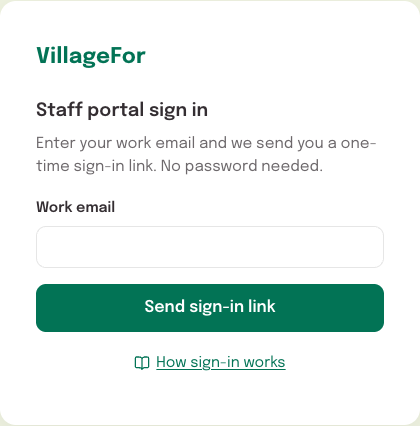
- Under "Staff portal sign in", type your address in Work email. Use exactly the address the invitation was sent to.
- Press Send sign-in link.
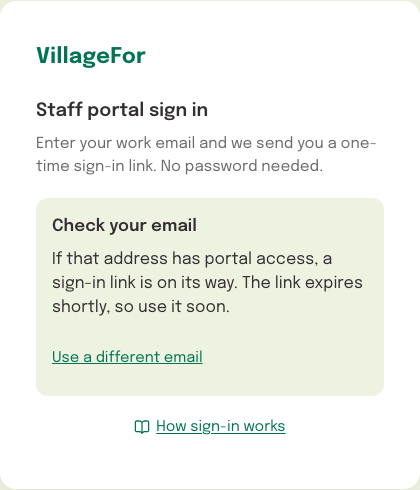
- The page changes to "Check your email" and says "If that address has portal access, a sign-in link is on its way. The link expires shortly, so use it soon."
The page shows this same message for every address, whether or not it has an account. That way it never tells anyone which addresses can sign in. If you typed the wrong address, press Use a different email.
Open the sign-in link
The email's subject is "Your VillageFor dashboard sign-in link". It holds a single link and says "The link works once and expires shortly. Requesting a new one invalidates this link." Until you have set up two-step sign-in, it also says: "Your first sign-in asks you to set up two-step sign-in with an authenticator app on your phone, for example Google Authenticator, Microsoft Authenticator or 1Password. Install one before you open this link: the setup has to be finished within 10 minutes of opening it."
The link works once and expires shortly. Requesting a new one invalidates this link.
Your first sign-in asks you to set up two-step sign-in with an authenticator app on your phone, for example Google Authenticator, Microsoft Authenticator or 1Password. Install one before you open this link: the setup has to be finished within 10 minutes of opening it.
- Open the email on the same computer, and in the same browser, that you will work in. If you open it on your phone, your phone gets signed in, not your computer.
- Click the link within 15 minutes. It works once.
- A page shows "Signing you in..." and then moves on by itself. The first time, it goes to the two-step setup. Every time after that, it goes to the code page.
Each new link cancels the one before, so always use the newest email.
Your first sign-in: set up two-step sign-in
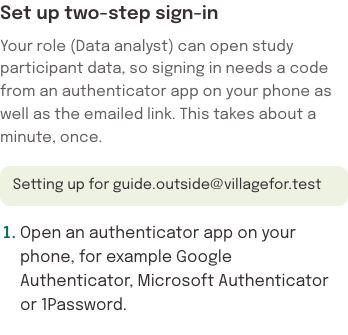
The page is called "Set up two-step sign-in". It says: "Your role (Data analyst) can open study participant data, so signing in needs a code from an authenticator app on your phone as well as the emailed link. This takes about a minute, once." Below that, "Setting up for" shows your address.
- Open your authenticator app.
- Add VillageFor to the app by scanning the QR code on the screen.
- If you can't scan it (for example, because the dashboard is open on the same phone), look under "Can't scan it? Enter this key in the app instead:" and press Copy key. Then paste the key into the app's option for entering a setup key.
- "Copied." confirms the copy. If you see "Copy did not work here. Select the text and copy it by hand.", select the key and copy it yourself.
- Find the new entry in the app. A scanned entry is named "VillageFor staff" on the live site and "VillageFor staff [sandbox]" on the test site. If you added the key by hand, give the entry that name yourself so you can find it later.
- In the field "Enter the 6-digit code the app shows for VillageFor staff.", type the code the app shows. It is sent by itself when you type the sixth digit. Confirm code does the same.
- The page changes to "Save your recovery codes" (next section).
A few points to keep in mind:
- You have 10 minutes after opening the link to finish this step.
- Don't reload this page. Every reload creates a new key, so an entry you already scanned stops matching and its codes fail. If you did reload, delete that entry from your app and scan the new QR code.
- Sign out on this page stops the setup. To try again, ask for a new link.
Save your recovery codes
The page says: "If you lose your phone, each of these codes signs you in once. They are shown only now. Keep them somewhere safe, such as a password manager." Below that are ten codes. Each one is two groups of five characters joined by a hyphen.
- Press Copy all and paste the codes into your password manager. Or press Download as a text file, which saves a file named villagefor-staff-recovery-codes.txt, and keep that file somewhere safe.
- Tick I saved these codes somewhere safe. Until you tick it, Continue to the portal stays off and the page says "Tick “I saved these codes” to continue."
- Press Continue to the portal. The message "Two-step sign-in is on." appears, and the dashboard opens (chapter 3).
Keep the codes somewhere other than the phone that holds your authenticator app. They are your way back in if you lose that phone.
Don't reload or go back on this page. The codes exist only on this screen. If they are lost, they can't be shown again. You can make new ones afterwards, under "When something goes wrong" below.
Every later sign-in
- Open the login address, type your address in Work email and press Send sign-in link.
- Open the newest sign-in email on the computer you work on, and click the link.
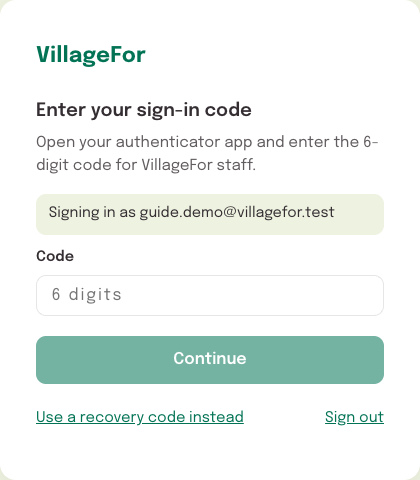
- The page "Enter your sign-in code" says "Open your authenticator app and enter the 6-digit code for VillageFor staff." and shows "Signing in as" with your address.
- Type the code from your app's entry for this site ("VillageFor staff", or "VillageFor staff [sandbox]" on the test site). It is sent by itself when you type the sixth digit. Continue does the same.
- The dashboard opens (chapter 3).
You have 10 minutes after opening the link to enter the code. Each code works only once. If you sign in twice in a row, wait for the app to show the next code.
How long you stay signed in
- Up to 12 hours. The dashboard signs you out 12 hours after you signed in, even if you are working. Your next click then takes you to the login page, with no message. This is normal: sign in again.
- A new browser, a private window or cleared cookies ask you to sign in again.
- Sign out when you finish. Press Sign out in the top bar, especially on a shared computer. After you sign out, the browser's Back button does not bring your pages back.
When something goes wrong
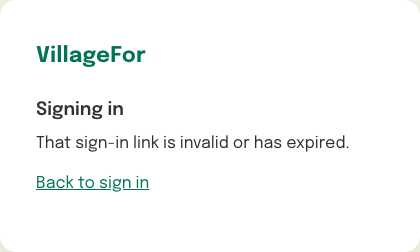
"That sign-in link is invalid or has expired."
Either the link was already used, it was more than 15 minutes old, or a newer link replaced it. A link is also used up as soon as the two-step page appears, so clicking the same email twice shows this message. The same message shows when too many sign-in links were opened from your network in the past hour, or when your account is no longer active. Press Back to sign in, ask for a new link, and use only the newest email.
The page says "Check your email", but nothing arrives
- Wait a few minutes, and check your spam or junk folder.
- Check that you typed exactly the address your invitation was sent to.
- To protect accounts, the dashboard sends at most five links to one address in an hour, and 20 to one network. A university network may count as one network for many people. Past those limits, the page still says "Check your email", but no email is sent. Wait an hour and try again.
- If still nothing arrives, ask your VillageFor admin to check your account.
"Something went wrong on our side. Please try again."
The request did not go through. Wait a moment, then press Send sign-in link again.
"Sign in again"
The page says "This sign-in has ended. Ask for a new sign-in link to try again." Usually the 10 minutes after you opened the link ran out before you entered your code. It also shows if you reload the recovery codes page (see below). Press Sign in again and ask for a new link.
"That code didn't work. Check the code in your app and try again. 4 tries left."
The number of tries left counts down. Common causes:
- You used the entry for the other site. The live site's entry is "VillageFor staff", and the test site's is "VillageFor staff [sandbox]".
- Your phone's clock is not set to automatic.
- You already used that code. Wait for the next one.
- During the first setup, you reloaded the page after scanning. Delete the entry from your app and scan the new QR code.
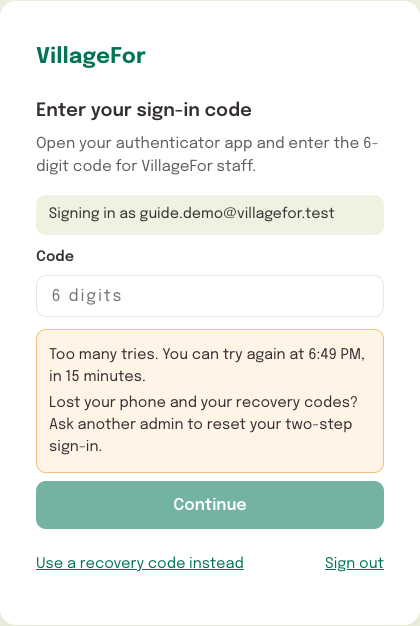
"Too many tries. You can try again at 10:42, in 15 minutes."
Your own time and minutes appear in place of the example. After five wrong codes, counted across all your devices, the code step locks for 15 minutes, and the field and its button are greyed out. The count includes app codes, recovery codes, and codes typed in Your account. By the time the lock lifts, the 10-minute window has ended, so ask for a new link. If the lock happens during your first setup, wait it out: an admin can't reset a setup that was never finished.
Signing in with a recovery code
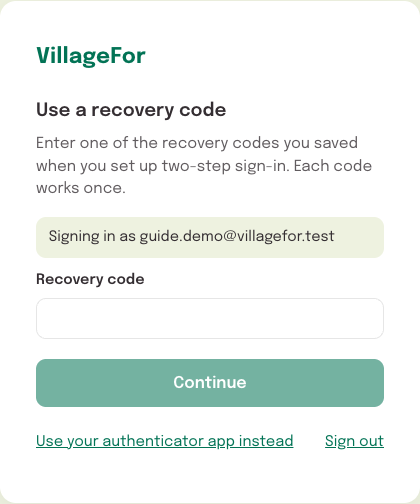
- On "Enter your sign-in code", press Use a recovery code instead.
- The page now reads "Use a recovery code". Type one of your saved codes in Recovery code. Hyphens and capitals don't matter.
- Press Continue. A recovery code is never sent by itself.
- The dashboard opens with a message saying how many codes you have left, for example "Recovery code used. You have 6 left. You can make new codes in Your account." With two or fewer left, the message asks you to make new codes soon. With none left, it asks you to make them now.
Each recovery code works once. A wrong one shows "That recovery code didn't work. Check it and try again." with the tries left, and it counts toward the same five tries. To go back to the app code, press Use your authenticator app instead.
You lost your phone
- If you still have recovery codes: sign in with one, then move to a new phone in Your account (see "Move to a new phone" at the end of this chapter).
- If you have no codes left: contact your VillageFor admin. Before resetting your two-step sign-in, they confirm it is you by phone or another channel they already hold. They do this because anyone can send an email in your name, and a reset is a way into your account. After the reset you are signed out everywhere. Ask for a new link, then set up two-step sign-in again as you did the first time, with new recovery codes.
You reloaded the recovery codes page before saving them
The codes can't come back, and the page shows "Sign in again". Your two-step sign-in is already on, though. Ask for a new link, sign in with a code from your app, then make new recovery codes in Your account.
A page could not load
During setup, the page may say "The setup could not start. Check your connection and reload the page." Check your connection, then reload, or press Back to sign in and ask for a new link. On the code page, the message is "This page could not load. Check your connection and reload it." Reload. If that doesn't help, open the login address and start again.
You were signed out without a message
If you signed in about 12 hours ago, this is the normal end of a session. Otherwise, an admin may have deactivated or removed your account, or reset your two-step sign-in. Ask for a new link. If you still can't sign in, ask your admin.
Your account
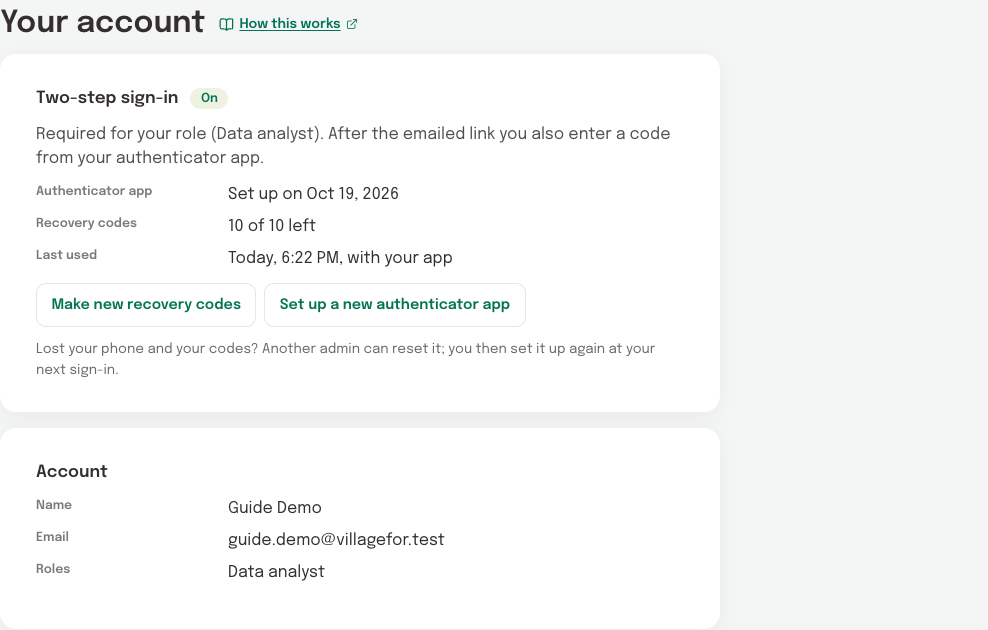
Your account is not in the left nav. To open it, click your name in the top bar.
The "Two-step sign-in" card shows the chip "On" and the line "Required for your role (Data analyst). After the emailed link you also enter a code from your authenticator app." Below that are three facts:
- "Authenticator app": the date you set it up.
- "Recovery codes": how many of your ten codes are left, for example "6 of 10 left".
- "Last used": when you last entered a code, for example at your last sign-in, and whether it came from your app or was a recovery code.
Your role requires two-step sign-in, so there is no way to turn it off.
The "Account" card shows your "Name", "Email" and "Roles". You can't change them here. To change your name, ask your admin. Your email address can't be changed.
Make new recovery codes
Do this when you are running low on codes, or if you think someone else has seen them.
- Press Make new recovery codes.
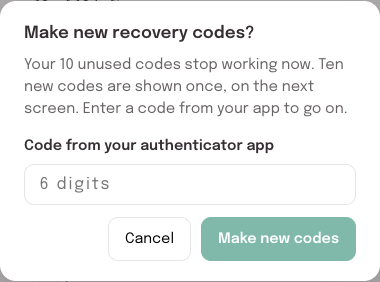
- The dialog "Make new recovery codes?" says that your unused codes stop working now. In Code from your authenticator app, type the code from your app. It is sent by itself when you type the sixth digit. Make new codes does the same. A recovery code doesn't work here.
- Save the ten new codes as you did the first time: press Copy all or Download as a text file, tick I saved these codes somewhere safe, then press Done.
The message "New recovery codes made. Your old codes no longer work." confirms it.
Move to a new phone
- Install an authenticator app on the new phone.
- In Your account, press Set up a new authenticator app.
- In the dialog "Set up a new authenticator app?", go to Code from your current app, or a recovery code. Type a code from the app on your old phone, or one of your recovery codes. Then press Continue.
- Under "Set up your new authenticator app", scan the QR code with the new phone, or use Copy key. Then type the 6-digit code the new app shows. It is sent by itself when you type the sixth digit. Confirm code does the same.
- The message "Your new authenticator app is set up." appears. Delete the old "VillageFor staff" entry from your old phone.
Your old app keeps working until the new one is confirmed. If you stop partway, the card says "A new authenticator app was started and was not confirmed. Your current app still works. To use the new one, set it up again."
Last checked against the dashboard on Oct 26, 2026